


“Installation Destination” Click on the option. By default, partition Otomatik is set, so the installer automatically generates partitions on the selected disc. If you want to use this option, "Otomatik" Make sure the option is selected.

However, if you want to create partitions manually "Custom" (Custom) Select option. In this guide, to show how to partition hard disk manually for users who have less experience Special We will use the option.

Then make sure the hard disk is selected and "Tamam" (Done) Click the button.
This step "Manual Partitioning" (Manual Partitioning) redirects to the section. By default LVM (Manual Unit Management) partitioning diagram selected and this option will work smoothly.

To start building partitions "+" (Art) Click on the icon.
In this guide, we will create separate sections by manually partitioning the disc:
In the window opened, as shown /boot specify the section.
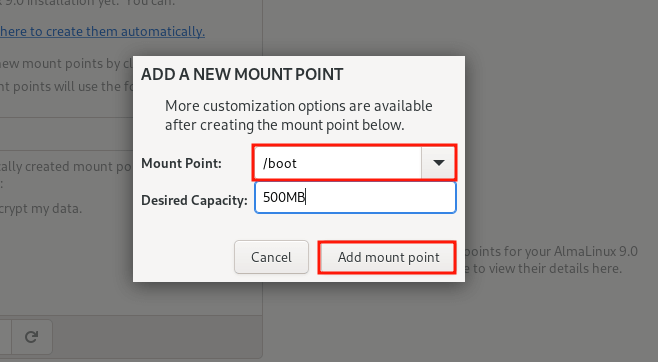
The following partitioning table, we created less /boot show section.

Following the same steps /home, / (cast index) and swap Create partitions.


To save changes after all sections are created "Tamam" (Done) Click the button.
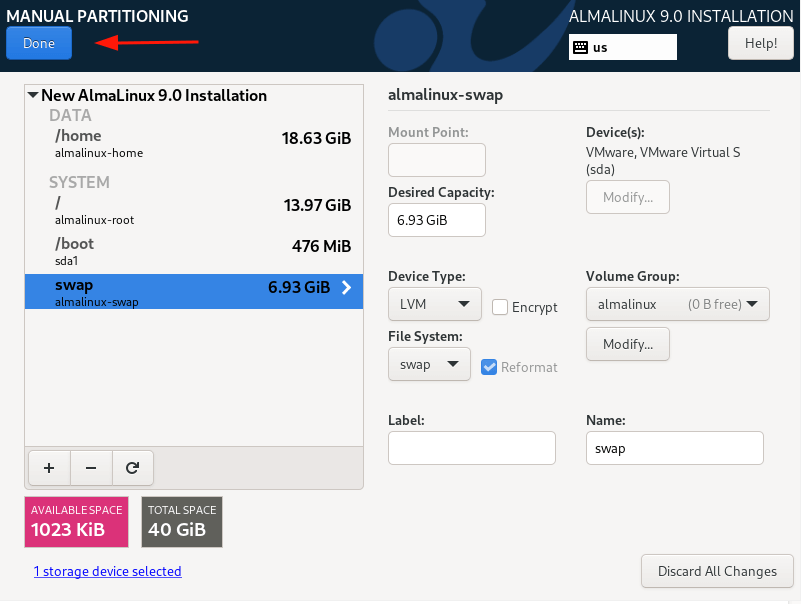
Finally, to write changes to disk "Accept Changes" (Accept Changes) Click the button.

If other settings are completed, you can start installation.